 User Guide
Quick search
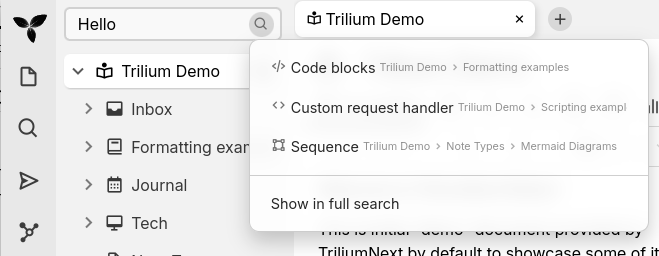
The Quick search function does a full-text search (that is, it searches through the content of notes and not just the title of a note) and displays the result in an easy-to-access manner.
The alternative to the quick search is the Search function, which opens in a dedicated tab and has support for advanced queries.
For even faster navigation, it's possible to use Jump to & command palette which will only search through the note titles instead of the content.
Layout#
Based on the Vertical and horizontal layout, the quick search is placed:
- On the vertical layout, it is displayed right above the Note Tree.
- On the horizontal layout, it is displayed in the Launch Bar, where it can be positioned just like any other icon.
Search Features#
Quick search includes the following features:
Content Previews#
Search results now display a 200-character preview of the note content below the note title. This preview shows the context where your search terms appear, making it easier to identify the right note without opening it.
Infinite Scrolling#
Results are loaded progressively as you scroll:
- Initial display shows 15 results
- Scrolling near the bottom automatically loads 10 more results
- Continue scrolling to load all matching notes
Visual Features#
- Highlighting: Search terms appear in bold with accent colors
- Separation: Results are separated with dividers
- Theme Support: Highlighting colors adapt to light/dark themes
Search Behavior#
Quick search uses progressive search:
- Shows exact matches first
- Includes fuzzy matches when exact results are fewer than 5
- Exact matches appear before fuzzy matches
Keyboard Navigation#
- Press
Enterto open the first result - Use arrow keys to navigate through results
- Press
Escapeto close the quick search
Using Quick Search#
- Typo tolerance: Search finds results despite minor typos
- Content previews: 200-character snippets show match context
- Infinite scrolling: Additional results load on scroll
- Specific terms: Specific search terms return more focused results
- Match locations: Bold text indicates where matches occur
Quick Search - Exact Match Operator#
Quick Search shares the same search engine as the full Search, so the exact match operator (=) behaves identically in both. Start your query with = (no space after it) to switch from the default "contains" behavior to exact whole-word or phrase matching.
What = actually does: it finds notes where the title or content contains your term as a whole word or phrase, ignoring surrounding punctuation. It does not require the whole note to equal your term, and it does not do substring or fuzzy matching.
| Query | Example note content | Matches? | Why |
|---|---|---|---|
sync |
synchronize the database now |
Yes | default search matches the substring |
=sync |
see (sync) mode |
Yes | = matches the whole word sync, punctuation ignored |
=sync |
synchronize the database now |
No | = never matches substrings |
="project plan" |
the (project plan) is ready to share |
Yes | quote a multi-word phrase to match it exactly |
The search is case- and diacritic-insensitive. For the complete explanation of the three matching modes, fuzzy operators and relevance ranking, see How search matches your text in the full Search documentation.
Limitations#
- The
=operator must be at the very beginning of the search query. - A space immediately after
=is treated as a regular search. - Multiple
=operators (like==example) are treated as regular text search.
Related Features#
- For attribute, property, boolean and ordering queries, use the full Search functionality.
- For fuzzy matching (finding results despite typos), use the
~=or~*operators in the full search. - For partial matches with wildcards, use operators like
*=*,=*, or*=in the full search.