 User Guide
Search
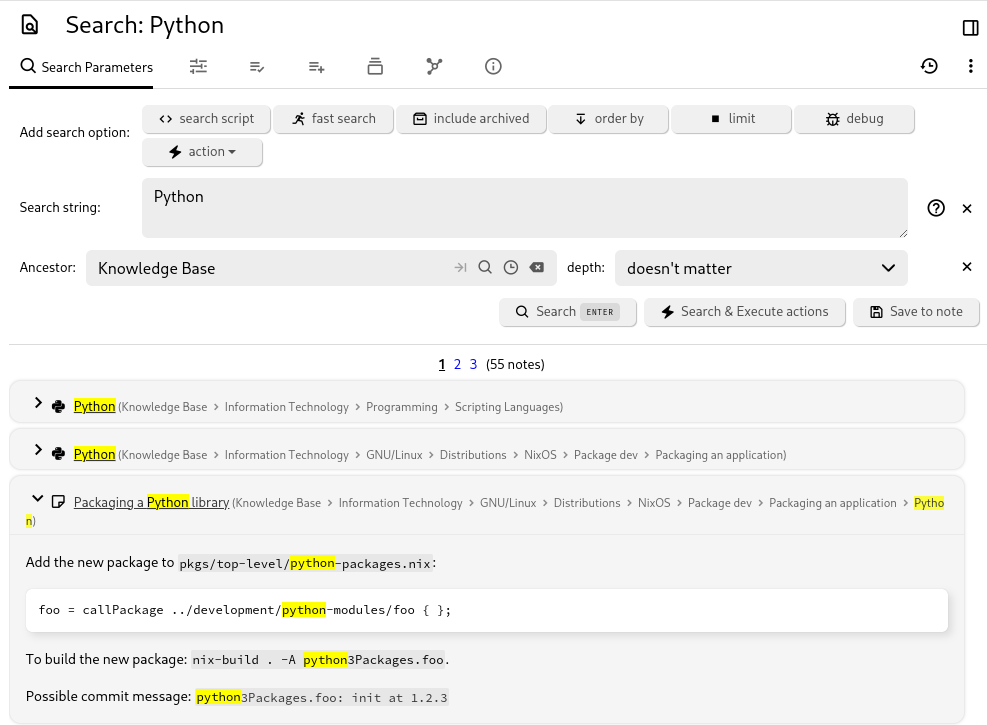
Note search enables you to find notes by searching for text in the title, content, or attributes of the notes. You also have the option to save your searches, which will create a special search note which is visible on your navigation tree and contains the search results as sub-items.
Accessing the search#
- From the Launch Bar, look for the dedicated search button.
- To limit the search to a note and its children, select Search from subtree from the Note tree contextual menu or press Ctrl+Shift+S.
Interaction#
To search for notes, click on the magnifying glass icon on the toolbar or press the keyboard shortcut.
- Set the text to search for in the Search string field.
- Apart from searching for words literally, there is also the possibility to search for attributes or properties of notes.
- See the examples below for more information.
- To limit the search to a note and its sub-children, set a note in Ancestor.
- This value is also pre-filled if the search is triggered from a hoisted note or a workspace.
- To search the entire database, keep the value empty.
- To limit the search to only a few levels of hierarchy (e.g. look in sub-children but not in sub-sub-children of a note), set the depth field to one of the provided values.
- In addition to that, the search can be configured via the Add search options buttons, as described in the follow-up section.
- Press Search to trigger the search. The results are displayed below the search configuration pane.
- The Search & Execute actions button is only relevant if at least one action has been added (as described in the section below).
- The Save to note will create a new note with the search configuration. For more information, see Saved Search.
Search options#
Click on which search option to apply from the Add search option section.
- For each search option selected, the search configuration will update to reveal the entry. Each search option will have its own configuration.
- To remove a search option, simply press the X button to the right of it.
The options available are:
- Search script
- This feature allows writing a Code note that will handle the search on its own.
- Fast search
- The search will not look into the content of the notes, but it will still look into note titles and attributes, relations (based on the search query).
- This method can speed up the search considerably for large databases.
- Include archived
- Archived Notes will also be included in the results, whereas otherwise they would be ignored.
- Order by
- Allows changing the criteria for ordering the results, for example to order by creation date or alphabetically instead of by relevancy (default).
- It's also possible to change the order (ascending or descending) of the results.
- Limit
- Limits the results to a given maximum.
- This can help if the number of results would otherwise be high, at the cost of not being able to view all the results.
- Debug
- This will print additional information in the server log (see Error logs), regarding how the search expression was parsed.
- This function is especially useful after understanding the search functionality in detail, in order to determine why a complex search query is not working as expected.
- Action
- Apart from just searching, it is also possible to apply actions such as to add a label or a relation to the notes that have been matched by the search.
- Unlike other search configurations, here it's possible to apply the same action multiple times (i.e. in order to be able to apply multiple labels to notes).
- The actions given are the same as the ones in Bulk Actions, which is an alternative for operating directly with notes within the Note Tree.
- After defining the actions, first press Search to check the matched notes and then press Search & Execute actions to trigger the actions.
Viewing search results#
Results appear below the search pane as a list of snippet cards — each card shows the note title and a short excerpt of the text that matched, with your search terms highlighted.
- The total number of results is always shown, so you can immediately tell how broad a query is.
- A page-size selector lets you choose how many results to display per page. Your choice is remembered and synced across your devices (stored in the
searchResultsPageSizeoption), so you do not have to reset it on every device. - Clicking a result opens the note and jumps straight to the first match. The in-note find bar opens pre-filled with your search terms, so you can step through the remaining matches with the find controls.
- If a match is inside a collapsed section (for example a folded heading), that section is expanded automatically so the match is visible.
How search matches your text#
The single most common source of confusion is that the = sign means two different things depending on where it appears. Read this section once and the rest of search becomes predictable.
There are three matching modes:
| Mode | How you trigger it | What it matches | Substring? | Fuzzy (typos)? |
|---|---|---|---|---|
| Default | type words with no prefix | whole words and substrings, anywhere in title, content or attributes, relevance-ranked | Yes | Yes |
| Exact full-text | a leading = (e.g. =sync) |
the exact whole word or phrase, ignoring surrounding punctuation | No | No |
| Attribute / property equality | = inside a #label=value or note.property=value clause |
the entire attribute or property value, exactly | No | No |
Every example below is backed 1:1 by an automated test, so the documentation cannot drift from the engine.
Default matching (no prefix)#
Rule: typing words with no prefix finds notes that contain those words anywhere in the title, content or attributes — as whole words or as substrings — and ranks the closest matches first.
| Query | Example note content | Matches? | Why |
|---|---|---|---|
sync |
please sync the folders |
Yes (ranked higher) | contains the exact word sync |
sync |
synchronize the database now |
Yes (ranked lower) | sync is a substring of synchronize |
Exact match with the = prefix#
Rule: a leading = switches the full-text search to exact matching — it finds the whole word or phrase only, ignoring surrounding punctuation, with no substring and no fuzzy matching. Use it when a normal search returns too many near-matches.
| Query | Example note content | Matches? | Why |
|---|---|---|---|
=sync |
see (sync) mode |
Yes | (sync) is the whole word sync; punctuation is ignored |
=sync |
in sync, then continue |
Yes | sync, is the whole word sync |
=sync |
he said "sync" out loud |
Yes | "sync" is the whole word sync |
=sync |
synchronize the database now |
No | = never matches substrings |
=sync |
please send the file |
No | = never matches typos / fuzzy |
To match an exact phrase, quote it after the = (single, double or backtick quotes all work). The phrase must appear as consecutive words, but punctuation between or around them is ignored:
| Query | Example note (title or content) | Matches? | Why |
|---|---|---|---|
="project plan" |
title Project Plan |
Yes | the title is exactly the phrase |
="project plan" |
the (project plan) is ready to share |
Yes | the consecutive phrase appears; punctuation is ignored |
="project plan" |
the plan for this project is late |
No | the words are present but not consecutive |
Attribute and property equality (=, !=)#
Rule: when = compares an attribute or property — #label=value, note.title=value — it is strict full-value equality: the whole value must equal what you typed (case- and diacritic-insensitive). This is not word matching. != inverts it.
The examples below assume four notes: Austria (#capital=Vienna), Somewhere (#capital=Vienna Austria), Czech Republic (#capital=Prague) and Switzerland (#capital=Zürich).
| Query | Example label value | Matches? | Why |
|---|---|---|---|
#capital=Vienna |
Vienna |
Yes | the whole value equals Vienna |
#capital=Vienna |
Vienna Austria |
No | the whole value is Vienna Austria, not Vienna |
#capital="Vienna Austria" |
Vienna Austria |
Yes | quote a multi-word value to match it in full |
#capital=Zurich |
Zürich |
Yes | equality ignores diacritics |
#capital!=Vienna |
Prague |
Yes | != matches every value that is not Vienna |
#capital!=Vienna |
Vienna |
No | != excludes the exact value |
Quick search relaxes this. The Quick search bar and autocomplete apply relaxed attribute matching — an attribute
=is treated as "contains" — so#capital=Viennatyped there also matchesVienna Austria; the strict full-value equality described here applies only in the full Search.
Fuzzy operators (~= and ~*)#
Rule: the fuzzy operators tolerate typos. ~= (fuzzy-equals) matches a value that is a close whole-word variant of your term; ~* (fuzzy-contains) matches when your term appears — as a fragment or a near-miss — anywhere inside the value. Both work on note properties (note.title, note.content, …) and on labels (#label). Fuzzy operators require at least 3 characters.
The examples assume a note titled Books carrying the label #author=Tolkien, and a note whose content is learn programming today.
| Query | Example value | Matches? | Why |
|---|---|---|---|
note.title ~= boks |
title Books |
Yes | one edit away from books |
#author ~= tolkein |
author Tolkien |
Yes | tolkein is a typo of tolkien |
note.content ~* progr |
learn programming today |
Yes | progr is a fragment of programming |
note.content ~* programing |
learn programming today |
Yes | programing is one edit from programming |
Fuzzy tolerance (AUTO)#
Rule: how many typos are tolerated depends on the length of your search term (the "AUTO" scheme popularized by Elasticsearch). Short terms must match almost exactly to avoid noise; longer terms tolerate more.
| Term length | Edits allowed |
|---|---|
| 1–2 characters | 0 (exact only) |
| 3–5 characters | 1 |
| 6+ characters | 2 |
| Query | Term length | Example note content | Matches? | Why |
|---|---|---|---|---|
cat |
3 | a bright red car |
Yes | 1 edit is within budget for 3–5 character terms |
ceck |
4 | the latest tech trends |
No | ceck→tech needs 2 edits; only 1 is allowed at this length |
combinef |
8 | the values were combined together |
Yes | combinef→combined is 1 edit; up to 2 are allowed at 6+ characters |
Relevance ranking#
Rule: results are ordered by how well they match, not merely whether they match. Exact whole-word and phrase matches rank above substring and fuzzy matches, and a note where your words appear as a consecutive phrase outranks one where they are scattered.
| Query | Ranked higher | Ranked lower | Why |
|---|---|---|---|
sync |
please sync the folders |
synchronize the database now |
exact word beats substring |
you and me |
I like you and me as a phrase |
the menu is here and you know it |
consecutive phrase beats scattered words |
What is searchable#
A search looks at more than the visible body text. All of the following are indexed and searchable:
- note titles,
- note body content,
- labels and relations (attributes),
- link URLs and the titles/descriptions of link previews,
- the titles of notes that a note reference-links to.
The last point is the least obvious: if a note's only content is a reference link to another note, searching for that other note's title still finds the linking note.
| Query | Setup | Matches? | Why |
|---|---|---|---|
special topic |
a note whose only content is a reference link to a note titled Special Topic |
Yes — the linking note is found; the linked target ranks first | the target's title is indexed into the linking note's searchable text |
special |
the same note (only a reference link to Special Topic) |
Yes — a single word from the target's title is enough to find the linking note | the indexed title is normalized just like body text, so even one lowercased word matches |
zurich |
a note whose only content is a reference link to a note titled Zürich |
Yes — the linking note is found | the indexed title has its accents normalized, so the plain form matches the accented title |
Diacritics#
Rule: accents are normalized on both sides, so an accented word and its plain form match each other.
| Query | Example note content | Matches? |
|---|---|---|
ktory |
slovo ktorý znamena nieco |
Yes |
ktorý |
the word ktory appears here |
Yes |
Regular expressions (%=)#
Rule: the %= operator matches a property or label value against a regular expression.
| Query | Example note content | Matches? |
|---|---|---|
note.content %= 'colou?r' |
my favorite color of all |
Yes |
note.content %= 'colou?r' |
my favourite colour of all |
Yes |
Simple Note Search Examples#
rings tolkien: Full-text search to find notes containing both "rings" and "tolkien"."The Lord of the Rings" Tolkien: Full-text search where "The Lord of the Rings" must match exactly.note.content *=* rings OR note.content *=* tolkien: Find notes containing "rings" or "tolkien" in their content.towers #book: Combine full-text and attribute search to find notes containing "towers" and having the "book" label.towers #book or #author: Search for notes containing "towers" and having either the "book" or "author" label.towers #!book: Search for notes containing "towers" and not having the "book" label.#book #publicationYear = 1954: Find notes with the "book" label and "publicationYear" set to 1954.#genre *=* fan: Find notes with the "genre" label containing the substring "fan". Additional operators include*=*for "contains",=*for "starts with",*=for "ends with", and!=for "is not equal to".#book #publicationYear >= 1950 #publicationYear < 1960: Use numeric operators to find all books published in the 1950s.#dateNote >= TODAY-30: Find notes with the "dateNote" label within the last 30 days. Supported date values include NOW +- seconds, TODAY +- days, MONTH +- months, YEAR +- years.~author.title *=* Tolkien: Find notes related to an author whose title contains "Tolkien".#publicationYear %= '19[0-9]{2}': Use the '%=' operator to match a regular expression (regex). This feature has been available since Trilium 0.52.note.content %= '\\d{2}:\\d{2} (PM|AM)': Find notes that mention a time. Backslashes in a regex must be escaped.
Advanced Use Cases#
~author.relations.son.title = 'Christopher Tolkien': Search for notes with an "author" relation to a note that has a "son" relation to "Christopher Tolkien". This can be modeled with the following note structure:- Books
- Lord of the Rings
- label: “book”
- relation: “author” points to “J. R. R. Tolkien” note
- Lord of the Rings
- People
- J. R. R. Tolkien
- relation: “son” points to "Christopher Tolkien" note
- Christopher Tolkien
- J. R. R. Tolkien
- Books
~author.title *= Tolkien OR (#publicationDate >= 1954 AND #publicationDate <= 1960): Use boolean expressions and parentheses to group expressions. Note that expressions starting with a parenthesis need an "expression separator sign" (# or ~) prepended.note.parents.title = 'Books': Find notes with a parent named "Books".note.parents.parents.title = 'Books': Find notes with a grandparent named "Books".note.ancestors.title = 'Books': Find notes with an ancestor named "Books".note.children.title = 'sub-note': Find notes with a child named "sub-note".
Search with Note Properties#
Notes have properties that can be used in searches, such as noteId, dateModified, dateCreated, isProtected, type, title, text, content, rawContent, ownedLabelCount, labelCount, ownedRelationCount, relationCount, ownedRelationCountIncludingLinks, relationCountIncludingLinks, ownedAttributeCount, attributeCount, targetRelationCount, targetRelationCountIncludingLinks, parentCount, childrenCount, isArchived, contentSize, noteSize, and revisionCount.
These properties can be accessed via the note. prefix, e.g., note.type = code AND note.mime = 'application/json'.
Order by and Limit#
#author=Tolkien orderBy #publicationDate desc, note.title limit 10This example will:
- Find notes with the author label "Tolkien".
- Order the results by
publicationDatein descending order. - Use
note.titleas a secondary ordering if publication dates are equal. - Limit the results to the first 10 notes.
Negation#
Some queries can only be expressed with negation:
#book AND not(note.ancestors.title = 'Tolkien')This query finds all book notes not in the "Tolkien" subtree.
Progressive Search Strategy#
Trilium uses a progressive search strategy that performs exact matching first, then adds fuzzy matching when needed.
How Progressive Search Works#
- Phase 1 - Exact Matching: When you search, Trilium first looks for exact matches of your search terms. This handles the vast majority of searches (90%+) and returns results almost instantly.
- Phase 2 - Fuzzy Fallback: If Phase 1 doesn't find enough high-quality results (fewer than 5 results with good relevance scores), Trilium automatically adds fuzzy matching to find results with typos or spelling variations.
- Result Ordering: Exact matches always appear before fuzzy matches, regardless of individual scores. This ensures that when you search for "project", notes containing the exact word "project" will appear before notes containing similar words like "projects" or "projection".
Progressive Search Behavior#
- Speed: Most searches complete using only exact matching
- Ordering: Exact matches appear before fuzzy matches
- Fallback: Fuzzy matching activates when exact matches return fewer than 5 results
- Identification: Results indicate whether they are exact or fuzzy matches
Search Performance#
Search system specifications:
- Content size limit: 10MB per note (previously 50KB)
- Edit distance calculations for fuzzy matching
- Infinite scrolling in Quick Search
Under the Hood#
Label and Relation Shortcuts#
The "full" syntax for searching by labels is:
note.labels.publicationYear = 1954For relations:
note.relations.author.title *=* TolkienHowever, common label and relation searches have shortcut syntax:
#publicationYear = 1954
~author.title *=* Tolkien
Separating Full-Text and Attribute Parts#
Search syntax allows combining full-text search with attribute-based search. For example, tolkien #book contains:
- Full-text tokens -
tolkien - Attribute expressions -
#book
Trilium detects the separation between full text search and attribute/property search by looking for certain special characters or words that denote attributes and properties (e.g., #, ~, note.). If you need to include these in full-text search, escape them with a backslash so they are processed as regular text:
"note.txt"
\#hash
#myLabel = 'Say "Hello World"'
Escaping Special Characters#
Special characters can be enclosed in quotes or escaped with a backslash to be used in full-text search:
"note.txt"
\#hash
#myLabel = 'Say "Hello World"'
Three types of quotes are supported: single, double, and backtick.
Type Coercion#
Label values are technically strings but can be coerced for numeric comparisons:
note.dateCreated =* '2019-05'This finds notes created in May 2019. Numeric operators like #publicationYear >= 1960 convert string values to numbers for comparison.
Auto-Trigger Search from URL#
You can open Trilium and automatically trigger a search by including the search url encoded string in the URL:
http://localhost:8080/#?searchString=abc
Search Configuration#
Parameters#
| Parameter | Value | Description |
|---|---|---|
MIN_FUZZY_TOKEN_LENGTH |
3 | Minimum characters for fuzzy matching |
MAX_EDIT_DISTANCE |
2 | Ceiling on character changes, reached only by 6+ character terms; shorter terms allow fewer — see the Fuzzy tolerance (AUTO) section above |
RESULT_SUFFICIENCY_THRESHOLD |
5 | Minimum exact results before fuzzy fallback |
MAX_CONTENT_SIZE |
10MB | Maximum note content size for search processing |
Limits#
- Searched note content is limited to 10MB per note to prevent performance issues
- Notes exceeding this limit will still be included in title and attribute searches
- Fuzzy matching requires tokens of at least 3 characters